

If you live in a particularly tall or wide house, or one with a complicated layout, then you might have problems with Wi-Fi dead zones where your high-speed wireless broadband connection just can't reach. That can seriously hamper your Netflix binge-watching or Spotify streaming. You don't have to settle for patchy coverage though, and there are several ways in which you can extend the reach of your Wi-Fi. ...
Upgrade your router
Your
available options here are going to depend on ISP you've signed up with
to provide your internet and the hardware setup that's currently in
place. Some companies are more picky about customers installing their
own hardware than others. Your best bet is to check with the ISP or
browse through a related support forum to check, and what you can do
will depend on where in the world you live too.
Comcast, for example, provides a list of hardware
its services can work with that you can use as a reference guide. If
you've been on the same router for a while, your ISP might send you an
upgrade free of charge. After all, if you're paying for a particular
speed, then it's their responsibility to provide you with the equipment
that gives you the best chance of getting it.
It's
possible to really go to town if you don't have anything better to spend
your money on (and what's more important than internet access?)—the D-Link AC3200 Ultra Wi-Fi Router
was shown off at CES and will set you back around $300 or so, but you
don't necessarily have to break the bank. Check the specifications of
your current equipment and see how much difference an upgrade is going
to make.
Replacing
the antennas on your router is another option, though many of the new
models from the last couple of years now use internal antennas and don't
have the necessary sockets to add your own. If you do have a compatible
model or you buy a router with external sockets—check the supplied
documentation with your hardware for details—then you can boost the wireless signal or change its direction.
Reposition your router
It may
sound obvious, but moving your router is one of the most effective ways
of improving the signal you can get around the home. Remember that most
routers beam signal in all directions at once, so ideally you want your
device floating somewhere in the middle of your property. If that's not
practically feasible, just get it as close as you possibly can.
Today's
hardware devices do a good job of beaming out Wi-Fi signals, but they're
not perfect. Walls, floor, furniture, mirrors and metal objects all
have a detrimental effect on the signal, so make some adjustments to the
internal layout of your home if required. The newer your laptops,
tablets and smartphones, the better able they will be to work with Wi-Fi
at faster speeds over longer distances.
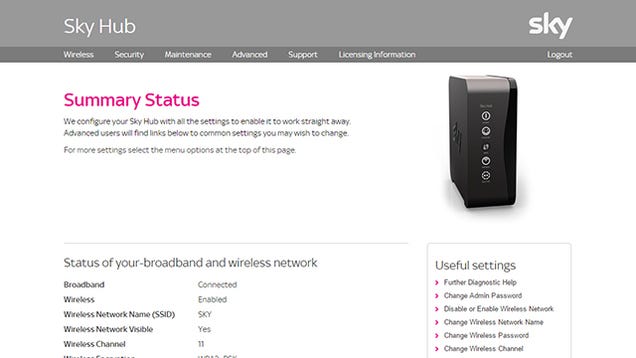
Baby
monitors, cordless phones and microwaves can cause interference too, and
changing the channel used by your router can reduce this (delve into
your router's help documentation if you're unsure about how to do this).
Many routers offer a choice of using 5GHz or 2.4GHz radio bands; the
former has more channels, so less chance of interference, but the signal
range doesn't stretch as far.
It's worth
recommending a firmware update too. If newer software is available for
your router model, then it can make a significant difference to the
capabilities of the hardware. Check with the router manufacturer or your
Internet Service Provider to see if there are patches available—on most
models, applying the update is only going to take a few clicks.
Share Wi-Fi with the neighbours
How well do
you know the people living around you? Are they older residents likely
to do the odd spot of web browsing and email checking? Or younger folk
who probably love nothing better than getting multiple torrent files
downloaded simultaneously? Depending on the answers to those questions,
you might find in practical to share an internet connection with those
who are living around you.
If you're
in terraced housing or apartments, for example, you can have your router
on the ground floor and your neighbor's higher up. Of course there's an
element of trust here—it's only going to work if you know the people
next door well and they've signed up for a suitably fast connection
speed—but you might consider giving away some of your bandwidth a small
price to pay to get web access in the top room in the house.

Think of it
as having one large family split across two buildings with two routers
to utilize and position them accordingly. If you both have speedy enough
connection packages then bottlenecks should be rare, and by swapping
passwords with each other you can double the chances of getting online
at no extra cost.
Even if you
are best buds with the people living next door, you probably don't want
them sniffing around your files; make sure you keep control over what
they can access on your home network once they have access to your
router. The network settings on your computer will let you restrict what
you share with other people, but this is perhaps not something to try
if you suspect there's a teen hacker living next door.
Invest in an extender or two
There are
two main approaches here: Extenders that simply repeat the original
signal over a further distance (usually losing a lot of speed along the
way) or powerline devices that use your home's electrical wiring system
to do the job of transferring bytes to and from your router. Of the two
options, powerline networking is definitely the way to go if you can.
For those of you who absolutely must take the repeater approach, all kinds of kit is available to fit your requirements and budget, and you can even repurpose an old router together with some open source software
to do the same job if you want to. After a short setup wizard you'll be
ready to go, and you can use the same positioning tips that we
mentioned earlier to minimize interference from other devices.

There are also plenty of hardware options
to choose from when it comes to Powerline networking. Some plugs
provide a wired connection in the room of your choice, while others can
create a Wi-Fi hotspot too; you're going to need to do some research
based on the setup you've got at home and what you want to be able to do
with it. Getting everything up and running is usually very
straightforward, and the configuration utilities you're going to need
will be included in the starter kit you buy. Linking two powerline plugs
together is typically just a case of pressing two buttons, one on each
device, to pair them.
For simple
web browsing, a repeater should be fine; if you're streaming HD video
and so on then you're probably going to want to get hold of some
powerline kit. As is normally the case, paying extra for decent quality
equipment is going to be worth it in the long term, so stick to
well-reviewed kit from the better-known manufacturers.




0 comments:
Post a Comment